Investment Property Mate
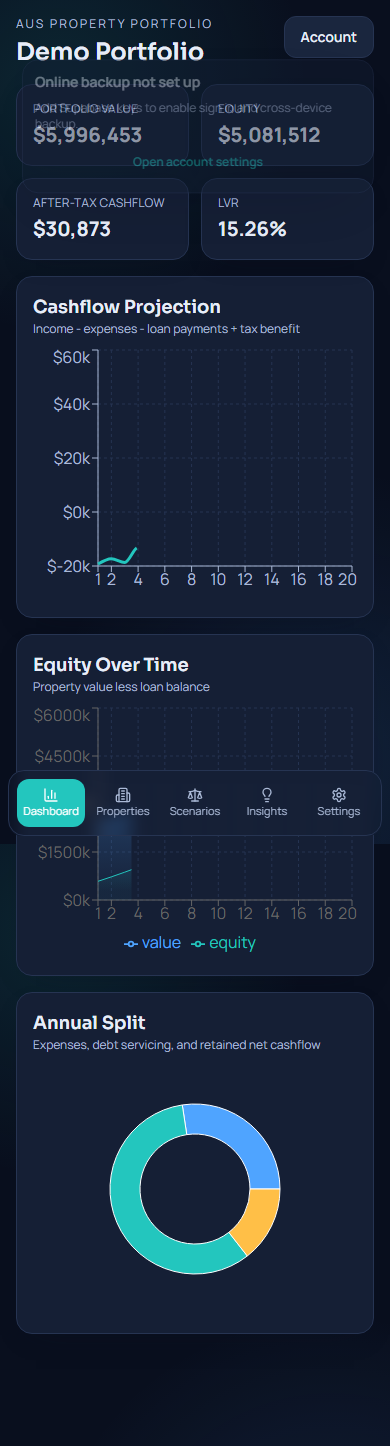
Dashboard
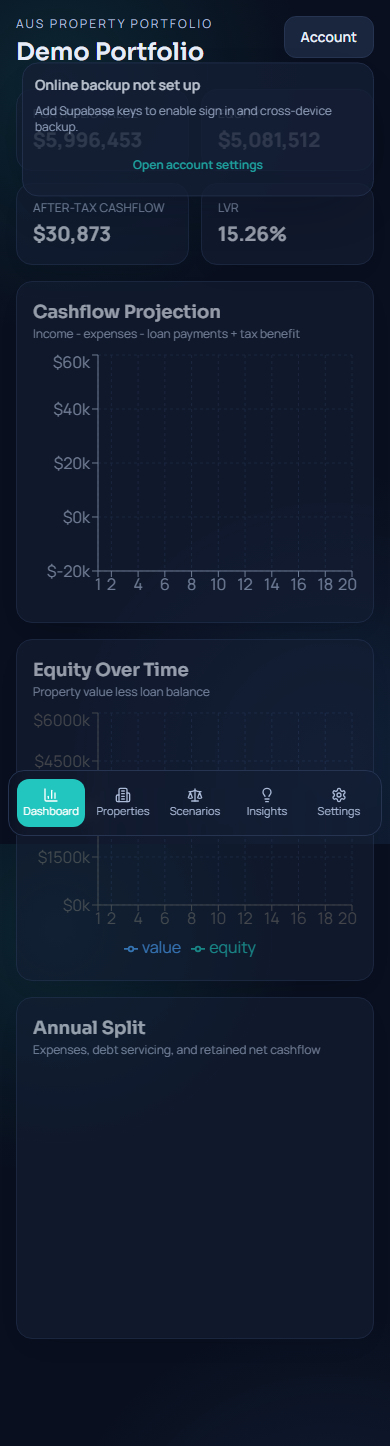
See your portfolio snapshot: cashflow, equity, and key risks.
- Use the bottom tabs to switch sections.
- Tap chart points to focus and view tooltips.
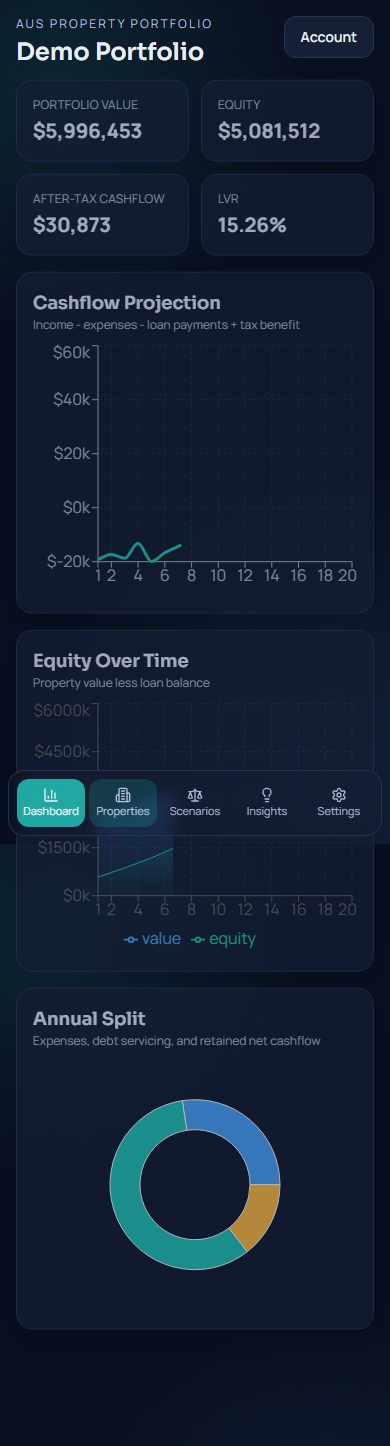
Properties
Add properties, edit details, and track expenses as flexible collections of items.
- Tap a property card to view detail.
- Use Edit to update assumptions and expense collections.
- Use one-off items for irregular repairs (for example years 3, 7, and 12).
Scenarios
Run what-if scenarios like interest rate shocks, vacancy changes, and sell timing.

Insights
Automated checks highlight risks and opportunities based on your assumptions.
Settings
Manage appearance, forecast horizon, backups, and imports.
Account & Backup
Sign in only if you want secure backup and restore across devices.
- Create account or sign in from the top-right Account menu.
- Use Back up now to save your portfolio.
- On a second device: sign in then choose Restore.
Pro Plan
Pro unlocks premium workflow tools while keeping all calculations offline.
- Free includes 1 property.
- Try Pro free for 30 days in Settings.
- Start or restore your subscription in the iOS/Android app.

Import/Export
Export JSON for full backups, and CSV for spreadsheet workflows.

PDF Statements
Parse PDF statements into totals, then apply them to a property as one-off expense items.

Troubleshooting
If something looks wrong, this checklist fixes most issues.
- If backup/restore fails: confirm you are signed in and your email is verified.
- If purchase sync is disabled: set
VITE_CLOUD_API_URLand sign in first. - If a PDF fails to parse: try a clearer statement PDF (not scanned images) and re-run parsing.
Privacy
All forecasting is done on-device. Backups are optional and user-controlled.
We do not request bank credentials in the app.
The product is developed in Brisbane, QLD by a team with 10+ years building payroll and ATO-compliance software systems.